
Technology & AI
How to Practice Digital Wellness: A Practical Tech Guide for Beginners


We live in a world where technology is everywhere. We use smartphones for work, tablets for entertainment, and smartwatches to track our health. While these gadgets make our lives easier, spending too much time online can make us feel tired, anxious, and stressed. This is why learning about digital wellness has become so important.
Digital wellness does not mean you have to throw away your phone or stop using the internet. Instead, it is about creating a healthy relationship with your technology. In this guide, we will share simple, practical tech tips to help you protect your peace of mind in a digital world.
What is Digital Wellness?
Digital wellness is the practice of using technology in a way that helps your life rather than hurts your mental and physical health.
Think about how you feel after scrolling through social media for an hour. Do you feel energized, or do you feel tired and upset? If technology is making you feel stressed, it means your digital habits need a small fix. Taking control of your screens allows you to stay focused, sleep better, and enjoy real-life moments.
5 Simple Ways to Boost Your Digital Wellness
You do not need to delete your accounts to find peace. Just change a few settings on your devices using these easy steps:
Master Your Push Notifications
Every “ding” and buzz from your phone is a cry for your attention. Most notifications are not urgent—they are just apps trying to sell you something or get you to scroll.
Go into your phone’s settings today and turn off notifications for everything except necessary apps (like direct text messages or work emails). Shutting off social media and news alerts stops your phone from breaking your focus throughout the day.
Set Up a Digital Detox Schedule
Both Android and iPhone devices have built-in wellness tools. Android has “Digital Wellbeing” and iPhones have “Screen Time.”
Use these free features to set an automatic schedule. For example, you can set your phone to go into “Bedtime Mode” or “Do Not Disturb” starting at 9:00 PM every night. This automatically turns your screen black-and-white or hides alerts, helping your brain relax so you can sleep deeply.
Clear Your Digital Clutter
Just like a messy room causes stress, a messy phone or laptop can clutter your mind.
Spend 10 minutes cleaning up your digital space:
- Delete apps you have not opened in the last month.
- Unfollow social media accounts that make you feel sad, angry, or jealous.
- Organize your main mobile screen so only helpful apps (like maps, calendars, or reading apps) are visible.
Practice the 20-20-20 Eye Rule
Staring at laptop and mobile screens for hours can cause headaches, dry eyes, and physical fatigue.
To protect your eyes, use the 20-20-20 rule. Every 20 minutes, look away from your screen and look at an object that is at least 20 feet away for at least 20 seconds. This simple trick rests your eye muscles instantly.
Create “No-Phone” Zones in Your House
Keep certain areas of your home completely free from technology. The two best places for this are the dining table and the bedroom.
Try eating your meals without looking at a screen. Talk to your family or just enjoy your food. More importantly, keep your phone away from your bed. If you use your phone as an alarm clock, buy a cheap traditional alarm clock instead. This stops you from scrolling late at night and early in the morning.

Final Thoughts: Technology Works for You
Remember, smartphones and computers are tools. They are supposed to serve you, not control you. By practicing digital wellness for just a few minutes every day, you can enjoy all the benefits of modern technology without losing your focus or happiness.
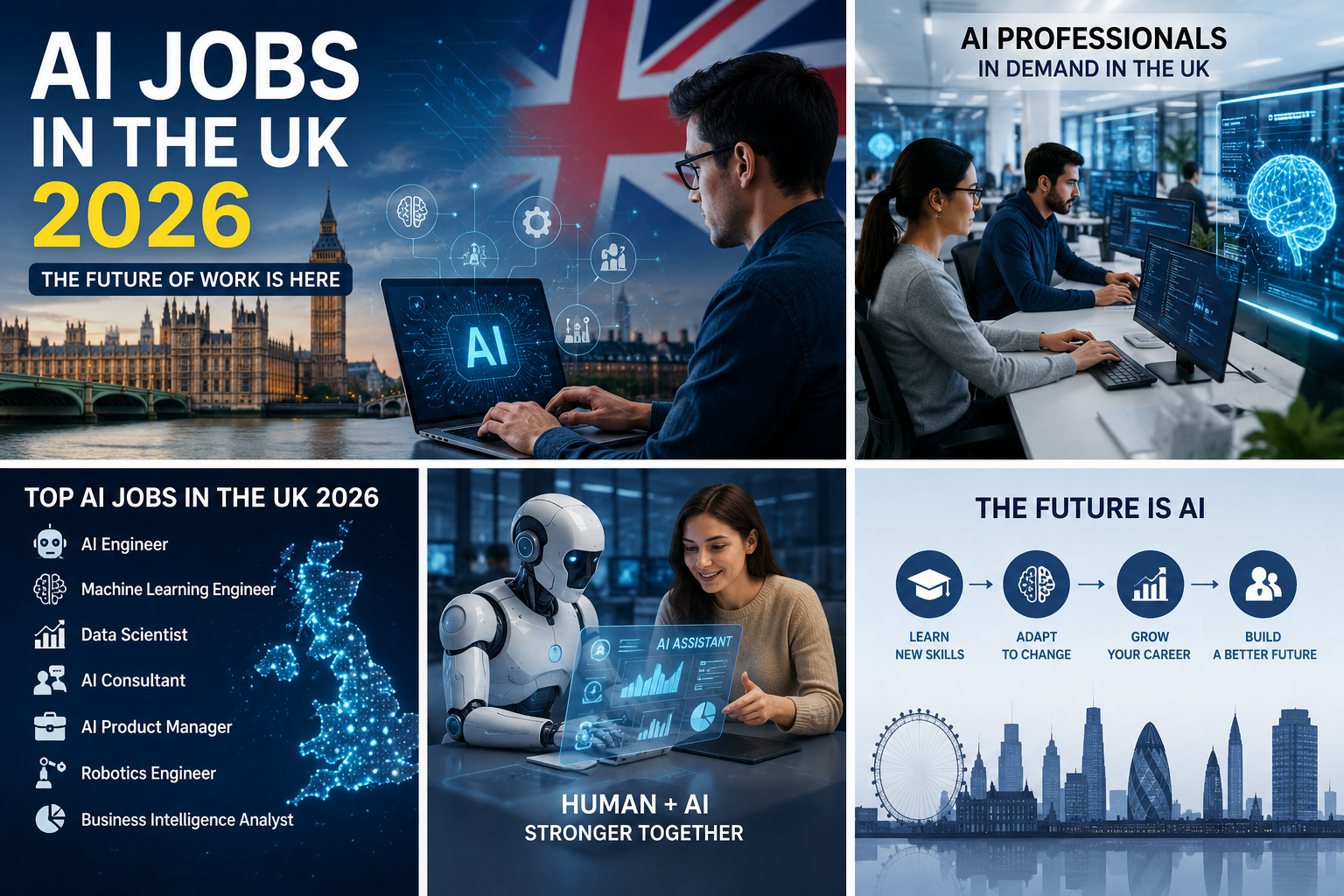
Artificial Intelligence, commonly known as AI, is no longer just a technology of the future. In 2026, it will become an important part of the UK job market. From technology companies and banks to healthcare, education, manufacturing and marketing, businesses are increasingly using AI to improve productivity and solve complex problems. As a result, a new generation of AI-related jobs is developing across the United Kingdom.
The interesting thing about the AI revolution is that it is not simply about replacing humans with machines. Instead, many companies are looking for people who can work with AI and use it effectively in their particular profession. According to PwC’s 2026 AI Jobs Barometer, specialist AI job postings in the UK increased by 61% in 2025, reaching around 180,000 postings. AI-related specialist roles represented about 2.2% of the overall UK job market.
What Kind of AI Jobs Are Growing
When people hear “AI jobs,” they often imagine computer scientists sitting in front of complicated machines. However, the reality is much broader.
One major category is AI and Machine Learning Engineers. These professionals develop systems that allow computers to learn from data and make predictions or decisions. They normally need knowledge of programming, mathematics, statistics and machine learning.
Another growing career is Data Scientist. Data scientists examine large amounts of information and use statistical and AI techniques to discover useful patterns. Their work can help businesses understand customers, improve products and make better decisions.
There is also increasing demand for AI specialists who apply existing AI tools to a particular industry. This is an important change in the UK market. PwC reported that AI-user roles grew much faster than developer roles in its analysis of 2025 UK job postings.
For example, a marketing professional might use AI to analyse customer behaviour, while a financial professional could use AI to identify patterns in financial data. This means that a person does not necessarily have to become a professional programmer to benefit from the AI job market.
AI Is Changing Traditional Careers
In reality, AI is changing the way people work in many industries.
This transformation does not automatically mean that every affected job will disappear. Recent research suggests that AI is often changing the tasks inside jobs rather than simply eliminating entire professions.
This creates a new type of worker: someone who combines professional knowledge with AI skills.
The Skills Employers Want in 2026
Technical knowledge remains important, but AI is also increasing the value of human skills.
People entering the UK job market should consider developing skills such as critical thinking, communication, creativity, problem-solving, teamwork and leadership. These skills become particularly useful when AI handles repetitive or basic tasks.
PwC’s research found that the skills required in highly AI-exposed jobs are changing more rapidly than those in less AI-exposed jobs. It also found stronger demand for human-intensive skills such as judgement, creativity and empathy.
Therefore, the strongest candidates may not be those who simply know how to use an AI tool. They may be people who understand when to use AI, how to evaluate its results and how to combine it with human judgement.
The Challenge for Young People and Graduates

Although AI creates exciting opportunities, entering the UK job market in 2026 is not always easy. The wider employment market has become more competitive, particularly for young people and graduates. Recent reporting indicates that UK job postings have weakened while AI-related demand has continued to grow.
This means students should think beyond simply obtaining a degree. Building practical skills, completing projects and understanding modern AI tools can help them demonstrate what they can actually do. Someone interested in computer science could explore machine learning and data analysis. A person interested in writing or design could learn how AI can support, rather than replace, their creative process.
What Does the Future Look Like?
The future of AI employment in the UK will probably be a mixture of opportunity and competition. Some routine tasks will become increasingly automated, while new roles will emerge around AI development, implementation, management, safety and business applications.
The UK government’s AI Labour Market Survey also highlights the importance of understanding skills gaps and changing skill requirements in the country’s AI sector.
The most valuable employee of the future may therefore not be a person who competes against AI, but someone who knows how to use it responsibly and effectively.
Conclusion
AI jobs in the UK in 2026 represent more than a new category of employment. They are part of a much bigger transformation in the way people work. Opportunities are growing in machine learning, data science, AI engineering and industry-specific AI applications, while traditional careers are also being reshaped.
For students and future professionals, the message is simple: learning AI is becoming less about choosing a single career and more about preparing for almost every career. Those who combine technical knowledge with creativity, communication and good judgement will be better prepared for the changing UK workplace.
AI may be changing the rules of employment, but it is also creating a new opportunity: the chance to build careers that combine the strengths of both humans and intelligent technology.
FAQs
What jobs will be taken over by AI in 2026?
AI is most likely to automate repetitive and routine tasks in areas such as data entry, basic customer support, administration and simple content work.
What jobs will boom in 2026 in the UK?
AI, cybersecurity, healthcare, data science, software development and renewable-energy jobs are expected to offer strong opportunities in the UK.
Which jobs will AI replace in the UK?
AI may reduce demand for some repetitive roles, but in many cases it will change job tasks rather than completely replace the entire profession.
Will AI jobs be in demand in 2030?
Yes, AI-related skills and jobs are expected to remain highly valuable through 2030 as businesses continue adopting artificial intelligence.
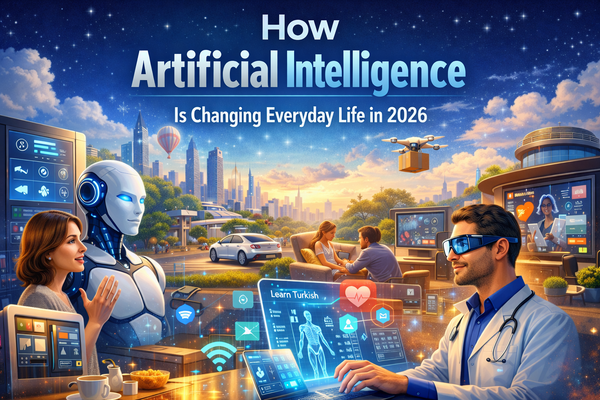
Artificial intelligence is no longer a technology limited to laboratories, large companies, or science-fiction movies. In 2026, AI will become part of many ordinary activities, from searching for information and planning a day to learning, shopping, working, and managing healthcare. The biggest change is that people are moving from simply using AI tools to working alongside AI assistants that can understand instructions, process information, and help complete everyday tasks.
As AI becomes more capable, its influence on daily life is becoming easier to notice. Here are some of the most important ways artificial intelligence is changing everyday life in 2026.
1. AI Assistants Are Becoming More Useful
AI assistants are evolving beyond simple question-and-answer chatbots. Modern systems can help users organise information, draft messages, summarise documents, plan activities, and manage multiple steps of a task.
Voice interaction is also becoming increasingly important. Instead of typing every request, people can speak naturally to AI and continue a conversation. This makes AI more convenient for people who are driving, cooking, working, or simply prefer talking rather than typing.
The trend toward more capable AI agents means everyday technology is gradually moving from “answering questions” toward “helping complete tasks.”
2. AI Is Transforming the Workplace
For many workers, AI has become a practical productivity tool. It can help write emails, prepare reports, analyse information, organise meetings, generate ideas, and handle repetitive administrative work.
The goal is not necessarily to replace every employee. Instead, AI can take care of time-consuming tasks while people concentrate on decision-making, creativity, communication, and responsibilities that require human judgement.
In 2026, knowing how to work effectively with AI is becoming an increasingly valuable workplace skill. The UK government’s 2026 research also highlights the growing importance of AI skills for both everyday life and employment.
3. Education Is Becoming More Personalised
Students can use AI to explain difficult concepts, practise questions, brainstorm ideas, and receive feedback. Teachers can also use AI to create lesson materials, adapt activities, and reduce some administrative work.
However, AI works best as a learning assistant rather than a replacement for teachers. Students still need to develop critical thinking and verify information instead of accepting every AI-generated answer.
The OECD’s 2026 Digital Education Outlook emphasises the importance of developing educational AI around real classroom needs while maintaining teacher autonomy.
4. Healthcare Is Becoming More AI-Powered

Healthcare is another area where AI is moving closer to everyday life. AI systems can assist with administrative work, medical documentation, information processing, care navigation, and some forms of clinical decision support.
In England, NHS England announced access to AI tools for more than 500,000 staff, with the aim of reducing administrative work and giving healthcare professionals more time for patients.
AI-powered healthcare assistants are also emerging for consumers. These tools can help people understand health information and navigate healthcare services, although professional medical advice remains essential for diagnosis and treatment.
5. Shopping Is Becoming More Artificial Intelligence
Online shopping is increasingly influenced by AI. Recommendation systems can analyse what people search for, view, or purchase and then suggest products that may match their interests.
In the future, shoppers may spend less time browsing hundreds of products manually. Instead, they can describe what they need and allow an AI assistant to compare options, explain differences, and help narrow down the choices.
This can make online shopping faster, but consumers should still check prices, reviews, specifications, and return policies before making purchases.
6. AI Is Changing the Way People Search for Information of Artificial Intelligence
Traditional search usually requires users to enter keywords and browse several pages. AI-powered search allows people to ask questions conversationally and receive information in a more direct format.
This is particularly useful for complicated questions where users want an explanation rather than a list of links. However, AI-generated answers can still contain errors, outdated information, or misleading claims.
For important subjects such as finance, law, health, and current events, users should continue checking reliable sources.
7. Smart Homes Are Becoming Smarter
AI is also improving the way people interact with their homes. Smart thermostats, security systems, appliances, cameras, and lighting can use data to recognise patterns and automate certain activities.
For example, an intelligent home system could learn preferred temperatures, detect unusual activity, or help reduce unnecessary energy consumption.
As AI becomes more connected with household devices, the home could increasingly respond to people’s routines rather than simply following individual commands.
8. AI Is Making Travel More Convenient
Planning a trip can involve comparing flights, hotels, transportation, attractions, restaurants, and schedules. AI can bring these tasks together by helping travellers create personalised itineraries.
Instead of searching separately for every part of a journey, users can describe their budget, interests, available time, and preferred activities. An AI assistant can then help organise the information into a practical travel plan.
Translation and voice AI can also make communication easier for travellers visiting countries where they do not speak the local language.
9. Artificial Intelligence Personal Finance Is Becoming More Automated
AI is increasingly being used to analyse financial information, identify unusual transactions, categorise spending, and provide budgeting assistance.
For everyday users, this could make it easier to understand where money is going and identify opportunities to control unnecessary spending.
However, financial decisions should not be based entirely on AI recommendations. Users should verify important information and consider professional advice when dealing with significant financial decisions.
10. Artificial Intelligence AI Brings New Risks Along With New Benefits
The rapid growth of AI also creates challenges. Privacy, misinformation, deepfakes, cybersecurity, biased outputs, and excessive dependence on automated systems are becoming important concerns.
As AI systems become more autonomous, questions about how much control they should have are also becoming more serious. Recent 2026 research and reporting have highlighted concerns about increasingly capable AI systems behaving unpredictably or deceptively.
This means AI literacy is becoming just as important as AI adoption. People need to understand not only what AI can do, but also when its output should be questioned.
The Future of Artificial Intelligence AI in Everyday Life

The most important change in 2026 is that AI is becoming less visible as a separate technology and more integrated into everyday services. It can appear inside phones, search engines, workplace software, healthcare systems, education platforms, vehicles, shopping services, and smart homes.
The future is unlikely to be about humans simply handing everything over to machines. A more realistic direction is human-AI collaboration, where artificial intelligence handles information-heavy and repetitive tasks while people provide judgement, creativity, empathy, and responsibility.
Conclusion
Artificial intelligence is changing everyday life in 2026 by making many digital experiences faster, more personalised, and more automated. From AI assistants and workplace productivity to education, healthcare, shopping, travel, and smart homes, its influence can already be seen across everyday activities.
At the same time, AI should be used thoughtfully. Its answers need verification, personal information needs protection, and important decisions should not rely blindly on automated systems.
The real impact of AI will not simply be measured by how advanced the technology becomes. It will depend on how intelligently and responsibly people choose to use it.
Frequently Asked Questions
1. How is AI changing everyday life in 2026?
AI is making everyday tasks faster and easier, from work and education to shopping, travel, and personal productivity.
2. What are common uses of AI in daily life?
People use AI assistants, smart home devices, search tools, translation apps, shopping recommendations, and productivity software.
3. Will AI replace human jobs?
AI may automate repetitive tasks, but human creativity, judgement, communication, and problem-solving will remain important.
4. How does AI help students?
AI can explain difficult topics, provide practice questions, generate ideas, and offer personalised learning support.
5. Is artificial intelligence safe?
AI can be useful when used responsibly, but users should protect personal information and verify important AI-generated information.
6. How is AI improving healthcare?
AI can help with medical administration, documentation, information processing, and some forms of healthcare support.
7. What is the future of AI?
AI is expected to become increasingly integrated into smartphones, workplaces, homes, education, healthcare, and other everyday services.
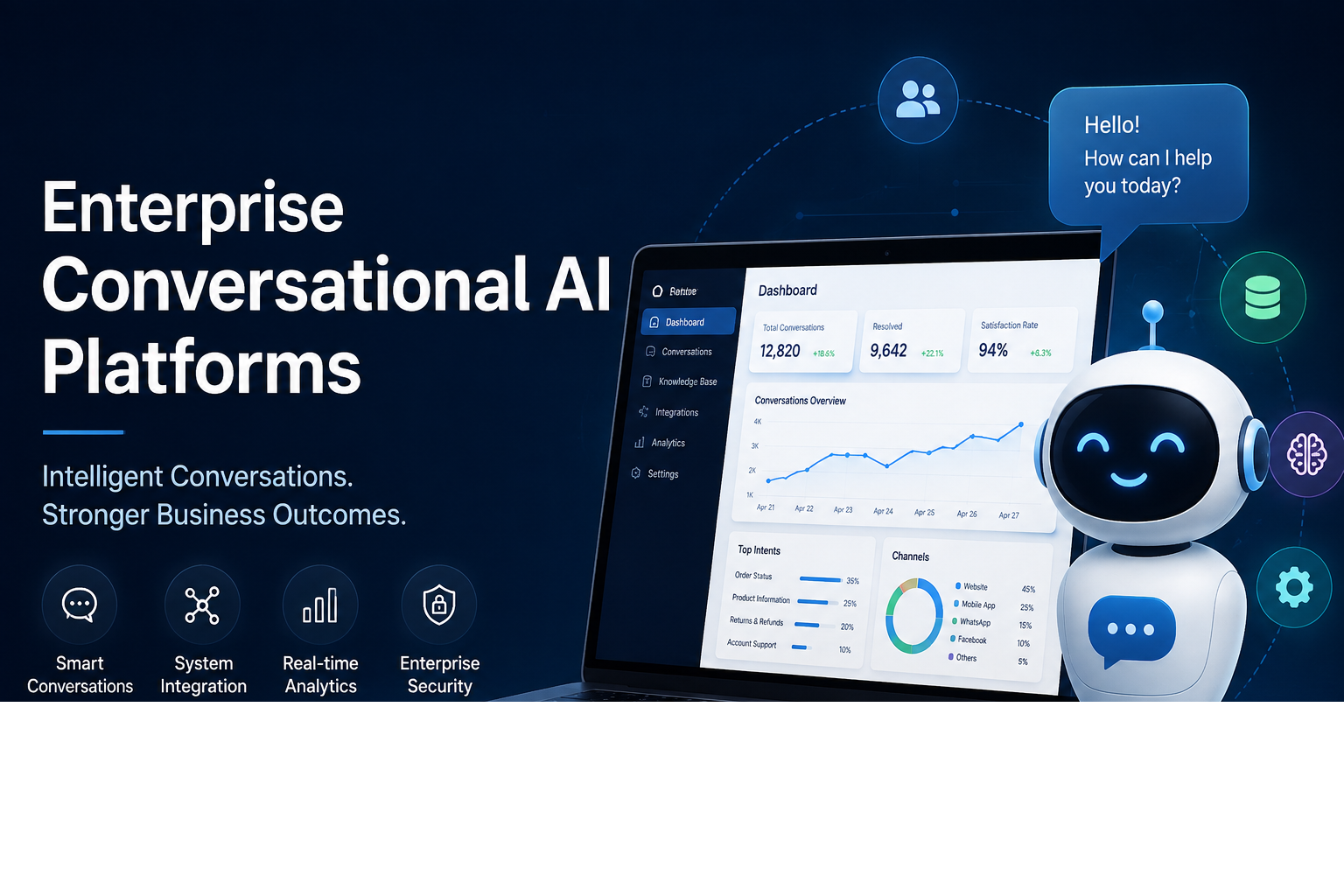
Businesses are increasingly using artificial intelligence to improve how they communicate with customers, employees, and partners. Enterprise Conversational AI Platforms provide organizations with tools to build intelligent virtual assistants, chatbots, and automated communication systems that can understand natural language and respond in a more useful way.
Unlike basic chatbots that rely on predefined answers, modern conversational AI can understand context, process different types of questions, and support more complex interactions. This makes it useful across customer service, sales, human resources, IT support, and other business functions.
What Are Enterprise Conversational AI Platforms?
Enterprise conversational AI platforms are software solutions designed to help large organizations create and manage AI-powered conversations.
These platforms can connect with business systems such as customer relationship management software, knowledge bases, help desks, and internal databases. This allows AI assistants to access relevant information and provide more personalized responses.
For example, a customer might ask about an order, while an employee could use an internal AI assistant to find company policies. The same underlying technology can support different business workflows.
Why Are Businesses Using Conversational AI?
Customer expectations have changed significantly. People increasingly expect quick answers and convenient digital communication. Businesses, meanwhile, need to handle large numbers of questions without continuously increasing support costs.
Conversational AI can help by providing assistance around the clock. It can answer common questions instantly and transfer more complicated issues to human employees when necessary.
This combination of automation and human support can create a more efficient customer experience.
Key Features
Natural Language Understanding
Modern platforms are designed to understand everyday language instead of requiring users to follow specific commands. This allows people to communicate with an AI assistant in a more natural way.
Integration With Business Systems
Enterprise AI becomes more useful when it can connect with existing business applications. Integrations with CRM, help desk, e-commerce, and knowledge management systems can allow assistants to provide information based on real business data.
Omnichannel Communication
Organizations may want to communicate with customers through websites, mobile applications, messaging services, or other digital channels. A strong platform can help manage conversations across multiple touchpoints.
Analytics and Monitoring
Businesses need to understand how AI assistants are performing. Analytics can reveal common questions, unsuccessful interactions, customer satisfaction trends, and areas where the system needs improvement.
Benefits for Enterprises
An AI assistant can handle many routine conversations simultaneously, helping businesses manage periods of high demand.
Conversational AI can also reduce repetitive work for employees. Instead of answering the same basic questions repeatedly, support teams can focus on complex problems that require human expertise.
Another benefit is consistency. AI assistants can follow defined business rules and provide standardized information across different customer interactions.
Common Business Applications
Enterprise conversational AI can be used in many departments.
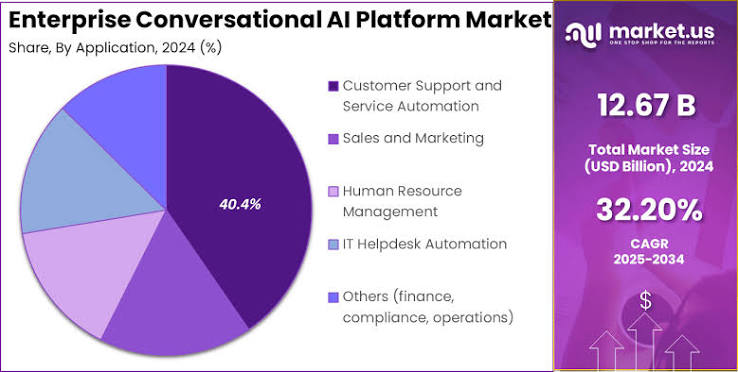
Customer service: AI assistants can answer frequently asked questions, provide order information, and guide customers through basic support processes.
Sales: Conversational tools can qualify leads, answer product questions, and help potential customers find relevant information.
Human resources: Employees can use AI assistants to find information about benefits, policies, leave procedures, and internal processes.
IT support: AI can help employees troubleshoot common technical problems and locate solutions within an organization’s knowledge base.
Challenges to Consider
Despite its advantages, conversational AI requires careful planning. Organizations need to consider data security, privacy, system integration, response accuracy, and ongoing maintenance.
AI systems can also misunderstand questions or provide incorrect information. For this reason, businesses should establish appropriate monitoring and escalation processes.
Employee training is another important factor. Staff should understand when AI should handle a request and when a conversation should be transferred to a human specialist.
The Future of Enterprise Conversational AI
Conversational AI is moving toward more capable systems that can understand context, work with business data, and complete multi-step tasks.
As AI technology develops, enterprise assistants may become less focused on simply answering questions and more capable of helping users complete actions. This could make conversational interfaces an important part of everyday business operations.
Conclusion
Enterprise Conversational AI Platforms can help organizations improve communication, automate repetitive interactions, and provide faster access to information. From customer service and sales to HR and IT support, these platforms have applications across many areas of a business.
The most effective approach is not to replace human employees entirely. Instead, businesses can use conversational AI to handle routine interactions while allowing people to concentrate on complex tasks that require experience, judgment, and empathy.
FAQ
What are Enterprise Conversational AI Platforms?
Enterprise Conversational AI Platforms are software solutions that help businesses create AI-powered chatbots and virtual assistants for customer service, sales, HR, IT support, and other operations.
How does conversational AI help businesses?
It can automate routine questions, provide faster responses, reduce repetitive work, and help employees focus on more complex tasks.
Can enterprise conversational AI integrate with existing systems?
Yes. Many platforms can integrate with CRM systems, help desks, knowledge bases, and other business applications.
Is conversational AI useful for customer service?
Yes. It can answer common questions, provide basic support, guide customers through processes, and transfer complex issues to human agents.
-

 UK News1 month ago
UK Wildfires 2026: Why Are Fires Spreading and Which Areas Are at Risk?
-

 Crypto2 months ago
Crypto Trading May Be Algorithmic in the Future, but Not Completely Autonomous
-

 Fashion3 months ago
Here are the Top 8 Luxury Clothing Brands in the UK for 2026?
-

 Technology & AI4 months ago
Depomin82: Rethinking Digital Infrastructure for a Smarter Connected Future
-

 Fashion4 months ago
How to Build a Capsule Wardrobe on a UK Budget?
-

 Business4 months ago
The Hidden Expenses in eCommerce Accounting: The Reasons Most UK Online Retailers Calculate Profit incorrectly
-

 Celebrity3 months ago
Liam Costner: Life, Career, and Family Beyond Hollywood
-

 Celebrity3 months ago
Tom Hardy Net Worth in 2026: Salary, Earnings & Career Highlights